
How do I mark an officer as a signatory?
Many agencies will require a signature to authorize the registration, and in most cases this is something that will be provided by marking an officer of the business as the signatory.
In order to designate a signatory on your registration you will start by editing the details of an officer, or entering in a new officer.
From there, you will scroll to the bottom of the page, as pictured below, to find a checkbox that, if selected, will designate the officer as the signatory. Once this has been selected, users can either upload a scan or photo of the officer’s signature or write it using the online signing tool.
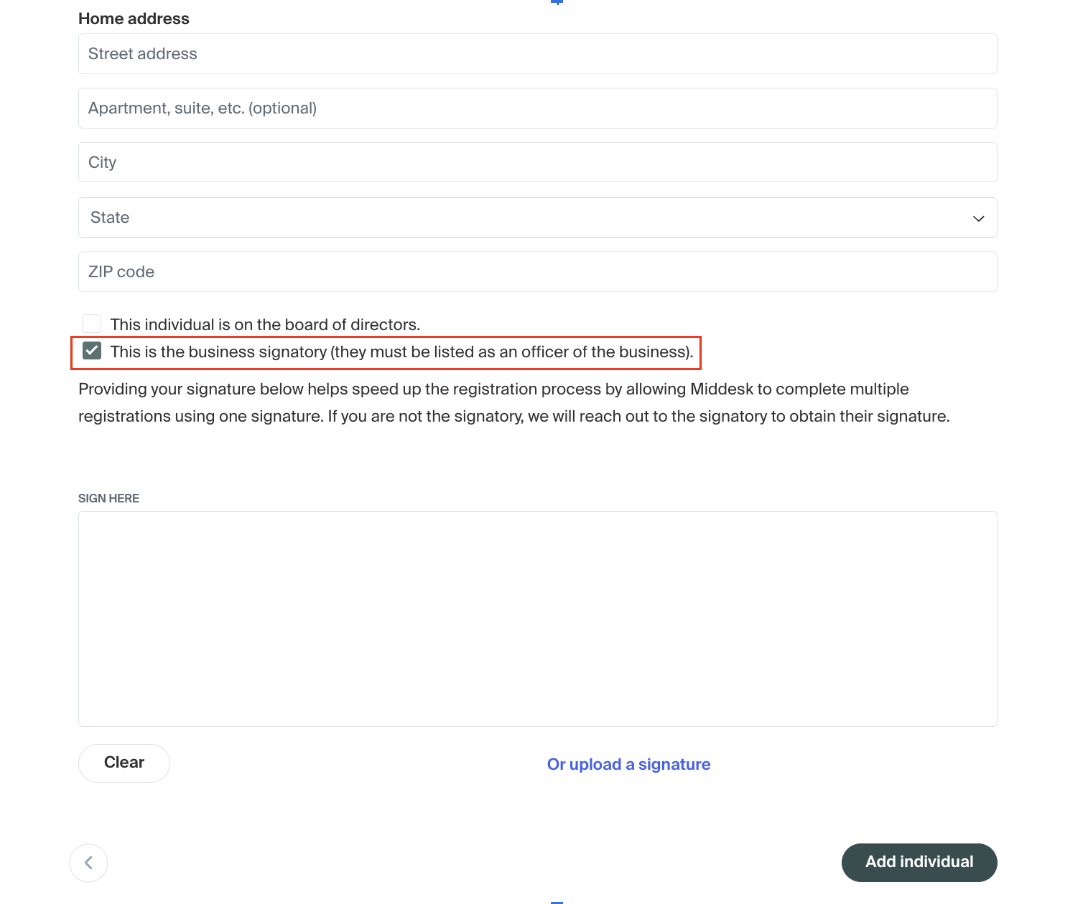
If our team determines a signature is required after your registration has been submitted, you will receive a notice via email directing the officer to follow a secure link to provide their signature. The officer may provide their signature either by using their trackpad via Middesk's online tool or by uploading an image of their physical signature.
Please keep the following guidelines in mind when uploading a signature image:
Please do not provide an image of a previously signed document.
Take care that there are no marks, such as lines or boxes, within the signature.
Ensure that the photo is taken straight on and in a well-lit environment.