
Middesk Dashboard Tour
The Middesk dashboard is an all-in-one management tool, so we encourage you to familiarize yourself with what it can do to streamline your registration experience. Below, you can find a summary of each section in the Middesk dashboard, and how they can be utilized to help your business.
Home Page
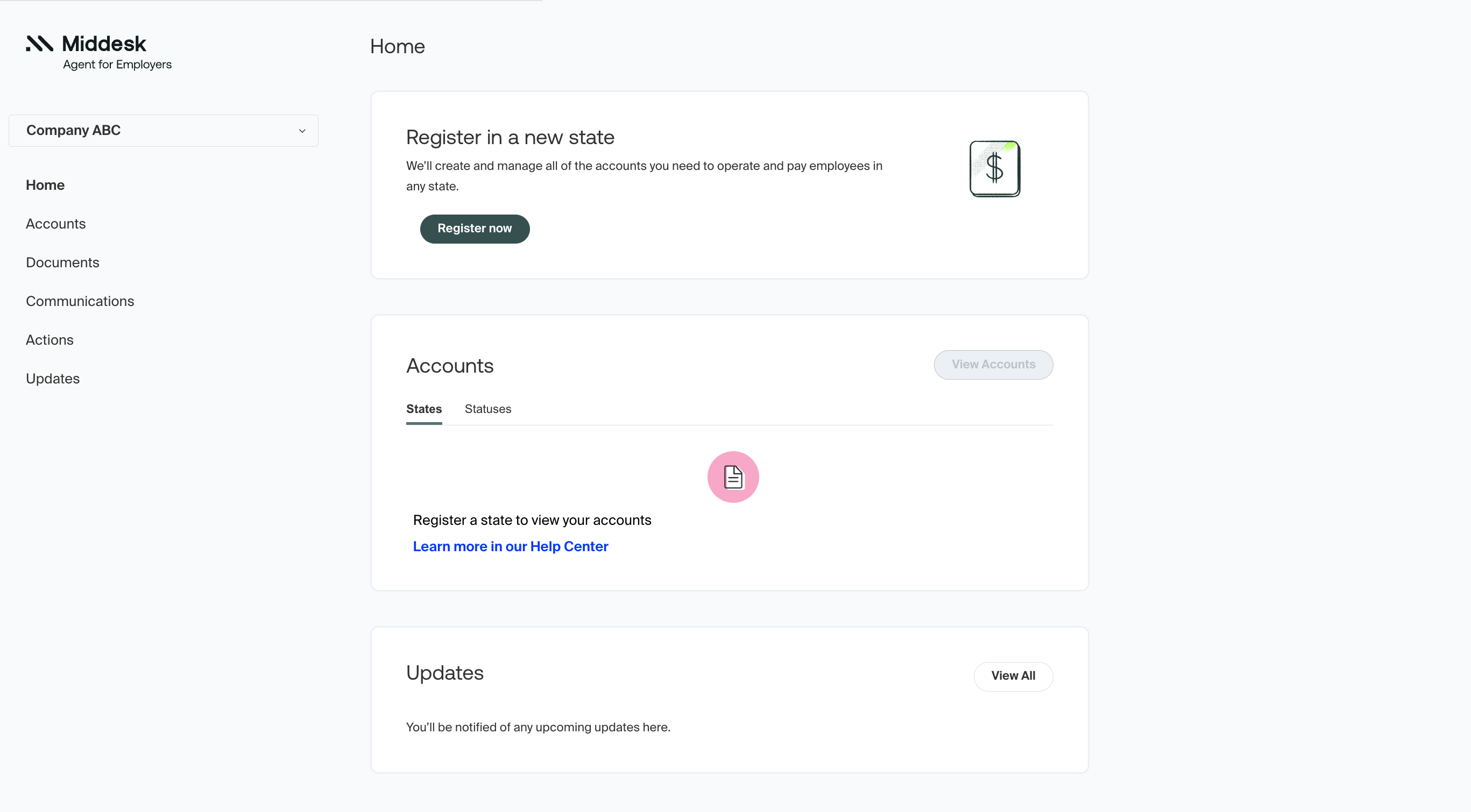
The home page to the Middesk dashboard is your first-glance resource to check on your registrations, and where your Middesk journey begins through new registration orders.
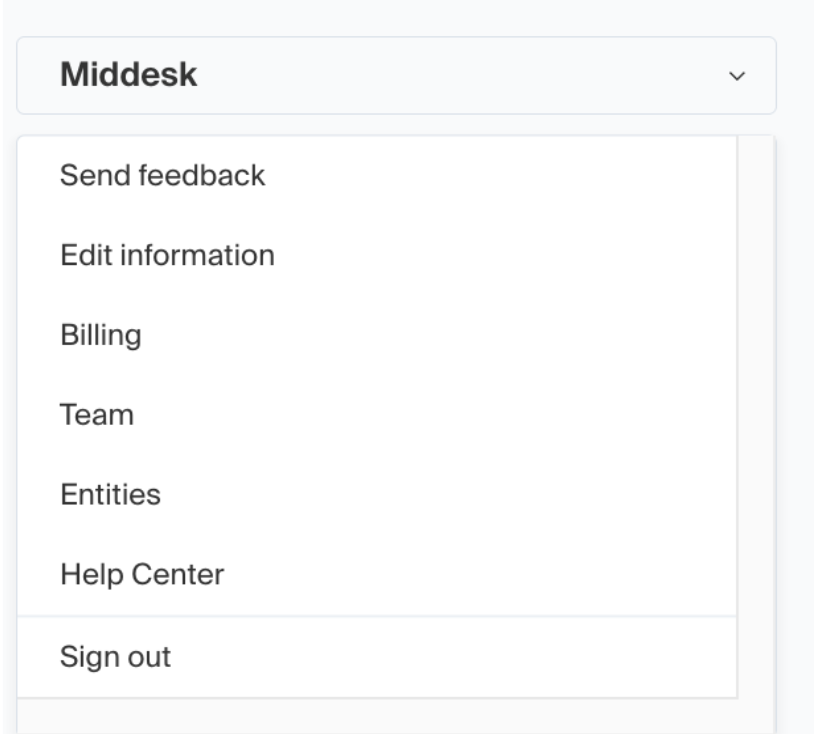
From there, you can access the sections covered later in this article via the left hand menu, along with some additional resources that are found in the drop-down menu which is opened by clicking on the business name, as seen here:
Accounts
The accounts section is where your tax registration information lives, and should be your first resource when checking up on your registrations. When you log into the dashboard, you’ll be greeted with a preview window of your accounts and by selecting “View Accounts” you can find a full state-by-state list of your registrations submitted to Middesk. Alternatively, you can navigate to a specific state account page from the home page by clicking on the 2 letter abbreviated icon found in the accounts preview.
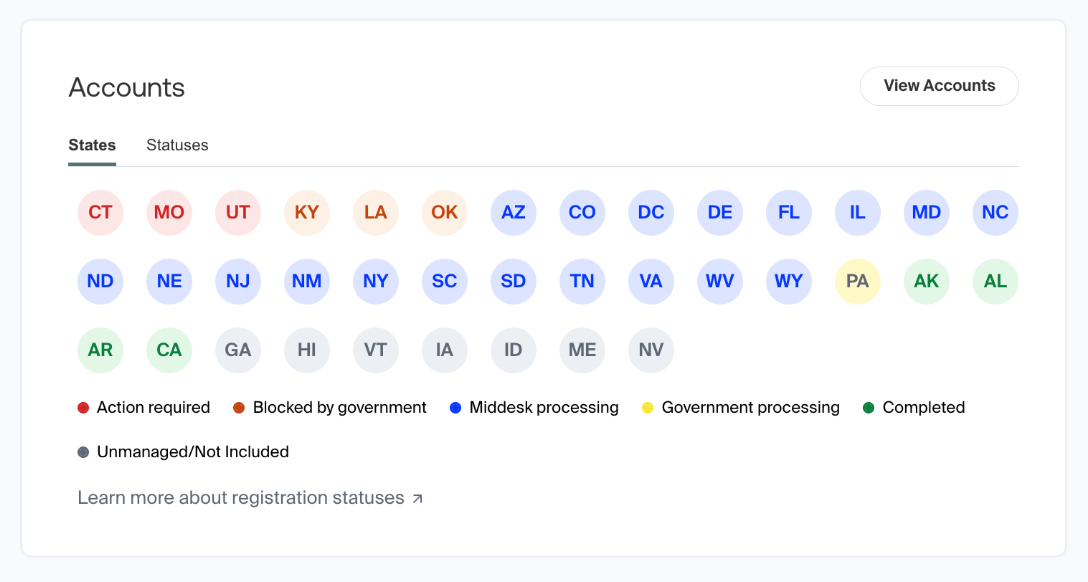
As seen in the example above, all registrations will display their status, which can provide at-a-glance context on the current standing of your registration. For more information on registration statuses, please consult Understanding Registration Statuses.
By selecting a state, either from the preview window on the home page or the accounts section, you can find information about your specific registrations. Below you can find two examples of what this section looks like, and how it will differ based on if the account contains an agency that Middesk creates a log in for you.
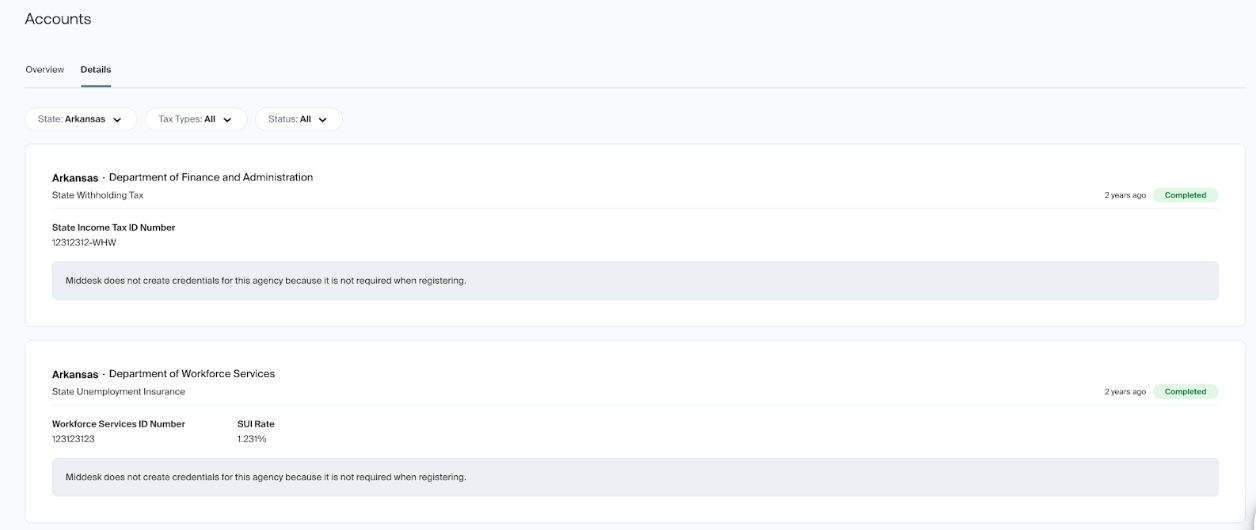
When Middesk creates an online agency tax portal account on behalf of your business, the credentials for the account will be contained in a “Credentials” drop-down menu, which as seen below, will expand to display the log-in information when clicked.
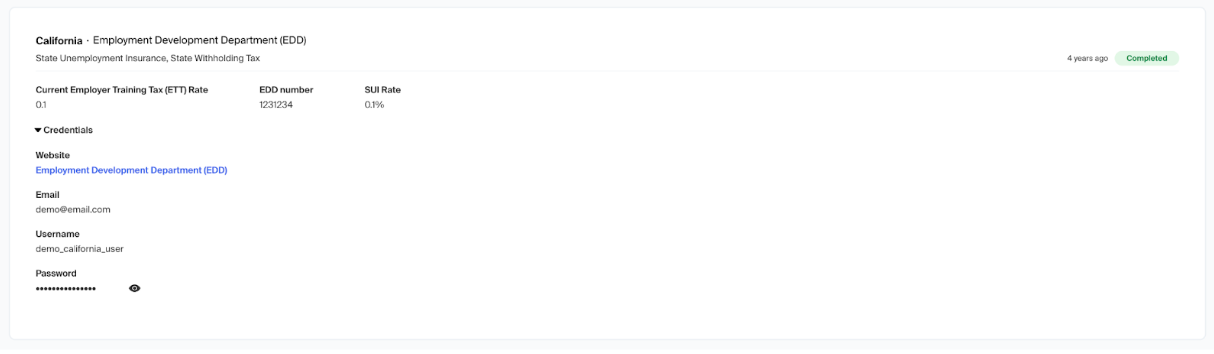
For more information on this topic, please consult the Agency Accounts section of the help center.
Documents
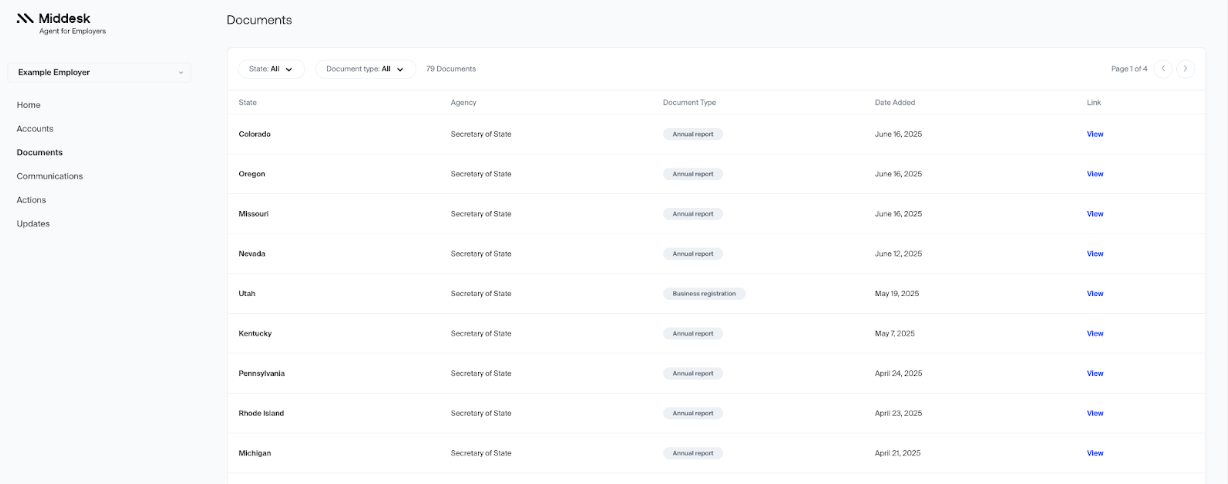
The documents section of your dashboard is where you can find a full list of all annual reports and secretary of state registrations completed by Middesk, alongside our registered agent partner Telos, on behalf of your business.
Communications
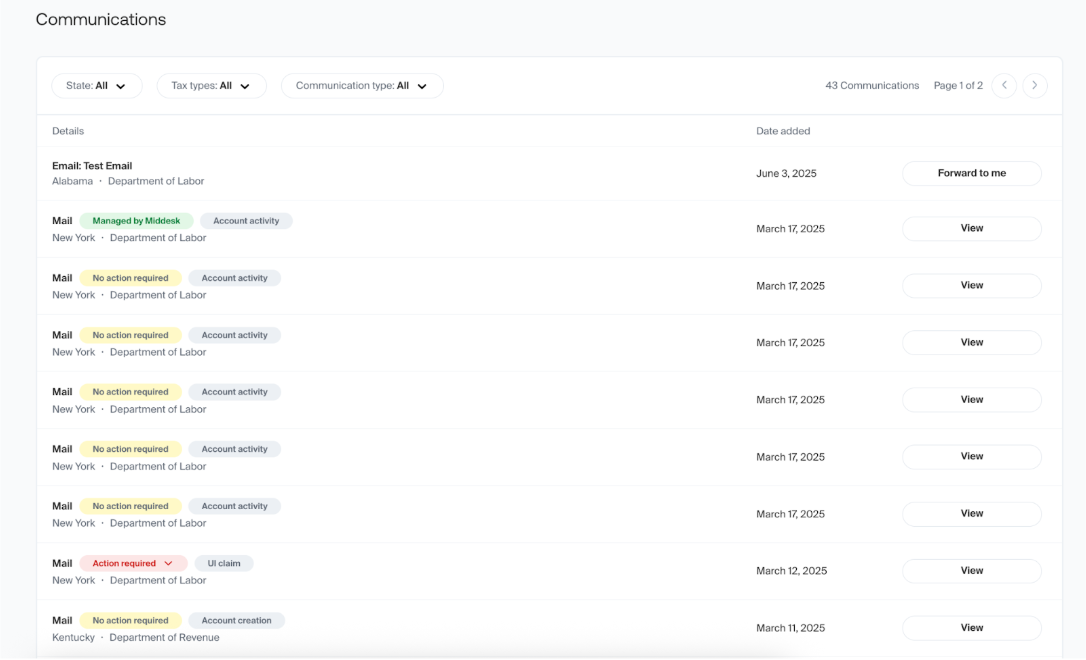
The communications page is one of the most important sections of the Middesk dashboard, allowing you to review all physical mail and email communications sent to your business from state agencies.
Actions
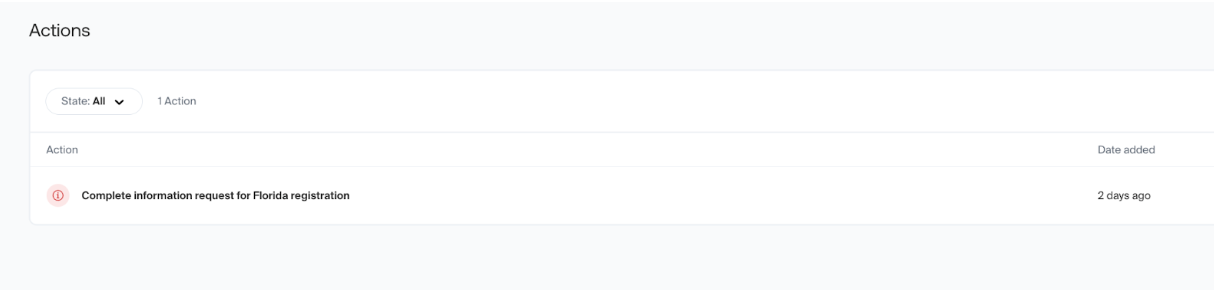
The actions page is for scenarios when additional information is needed from Middesk to complete your registration or help manage your tax accounts, or to remind you of in-progress registration orders that have not been completed.
It is very important to make sure that actions related to information requests are answered promptly, as their completion is almost always a pre-requisite for our team to submit your registration to the state, or have it approved by the relevant state agency post-submission.
Updates
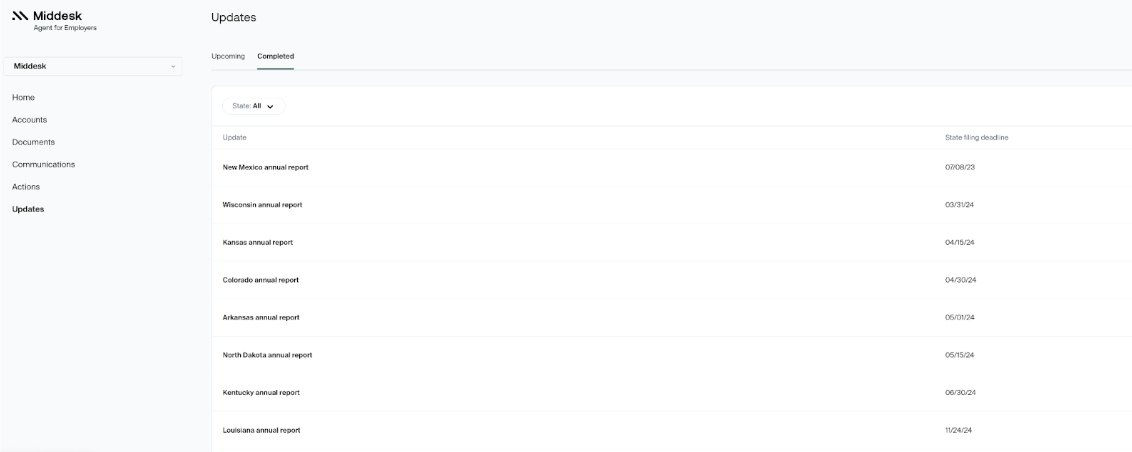
The updates section of your dashboard is where you will find information pertaining to your annual reports, if Middesk is managing any secretary of state registrations and/or foreign qualifications for your business. Alongside our registered agent partner, Telos, Middesk will file your annual report to ensure your business remains in good standing with the Secretary of State.
This page has two tabs - Upcoming and Completed. These tabs, as indicated by name, will display your upcoming and completed annual reports alongside their state filing deadlines.
If you ever have any questions about individual annual reports, please feel free to reach out to our agent support team at agent@middesk.com
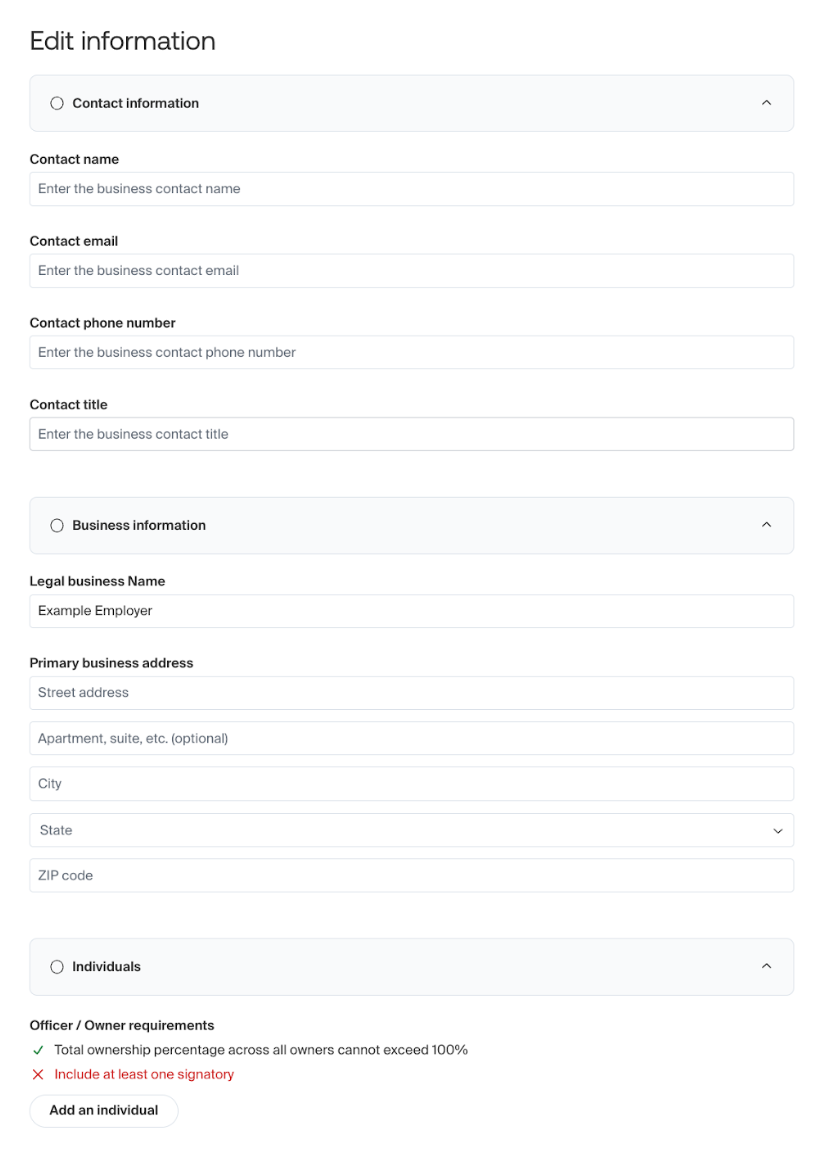
Edit Information
Found in the business drop-down menu, this section allows you to edit the basic information about your business and employees that will be applied to any new registration orders. This information can be broken down into three categories: Contact information, business information, and individuals.
Individuals refers to individual owners or officers of your business, and if multiple individuals are listed, at least one will be required to be listed as a signatory of the business.
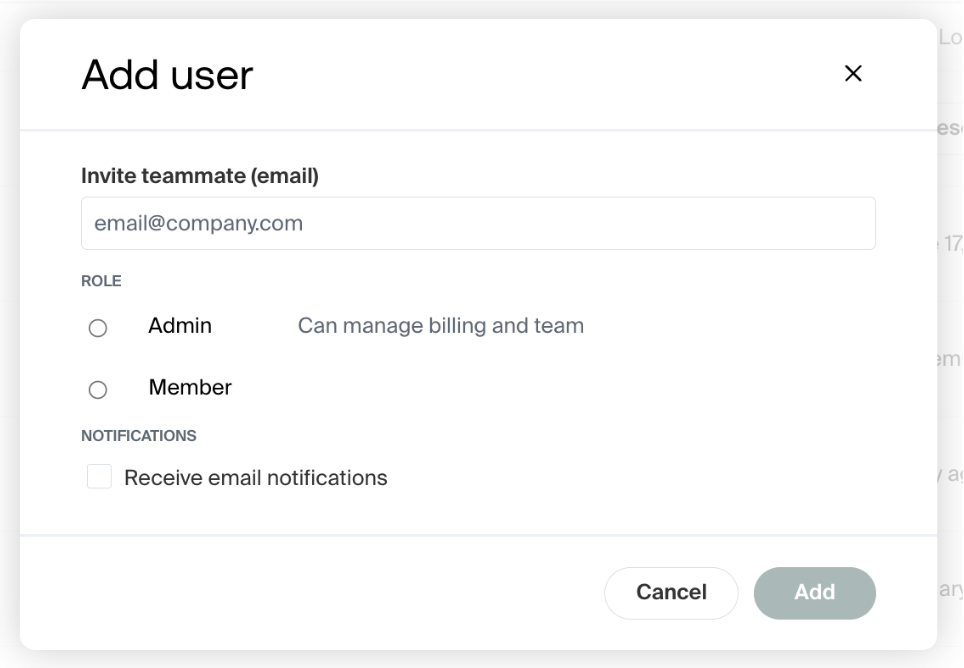
Team
Found in the business drop-down menu, this section allows you to manage the users from your organization who can utilize the Middesk dashboard, along with their level of account access.
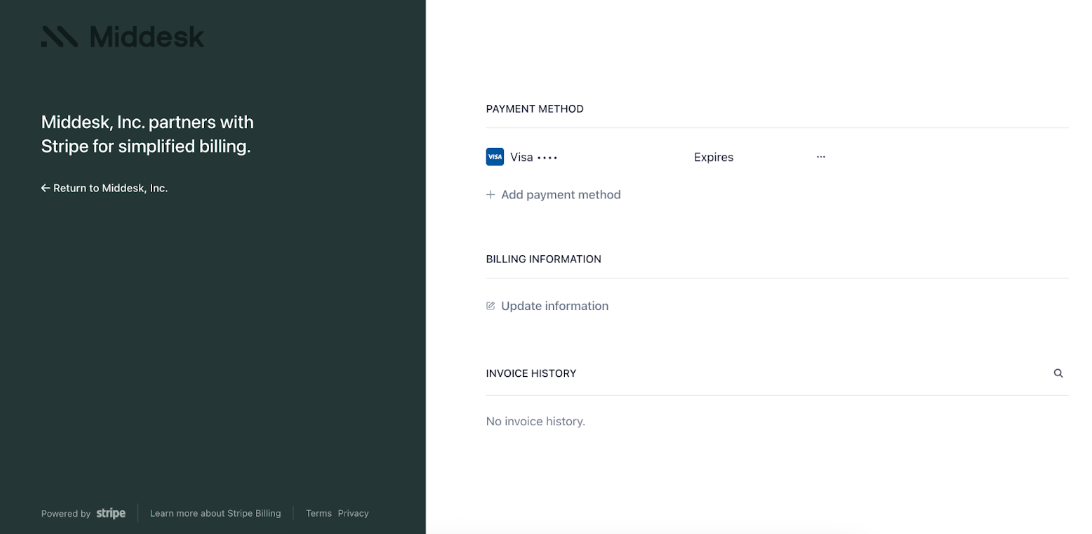
Billing
The Billing page allows you to add, edit, or remove your payment information on your account. When any fees or new registrations are charged, it will be to whatever card is currently connected to the account, so it’s important that this is kept up to date.
Entities
The Entities page, brought up with the drop-down menu pictured below, is the section of the dashboard that enables users to manage multiple business entities from one Middesk account.
*Please note that Middesk accounts can only have one payment method attached, so if you require separate cards be applied to the different entities you’re managing - then we would recommend against using the Entities page to manage them under the same Middesk account.
The entities page can be used to add additional business entities to your account, and to switch between those entities as needed to. To add an entity, you’ll first navigate to the page via the left-hand dropdown menu.
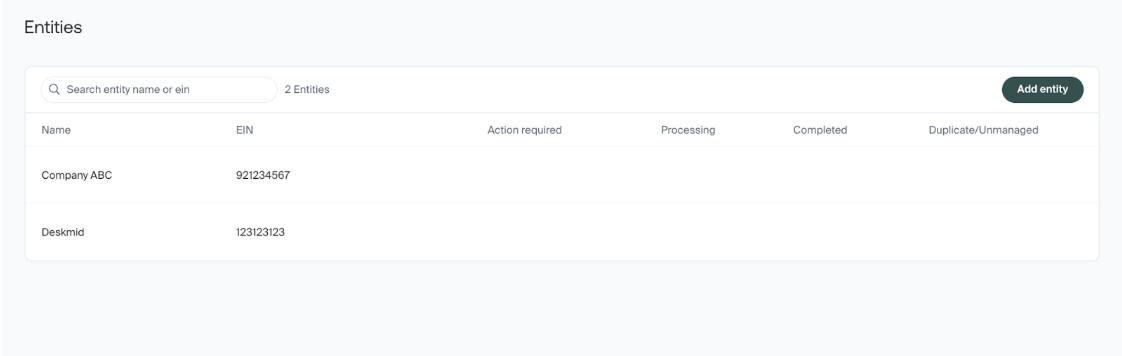
From there you will see a page containing a button in the top right corner labeled “Add entity”. If this is your first time using this page, then you’ll likely only see the one main entity under your account. To add a new entity, all you need to do is click the button to bring up the window in the screenshot below to enter in the information.
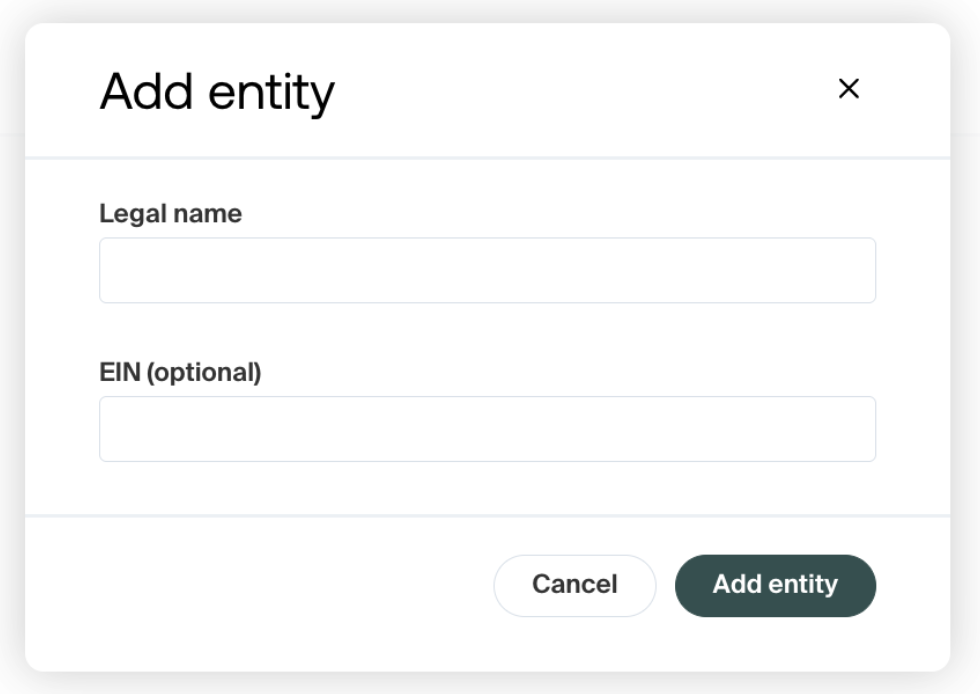
From this point on, the Entities page can be used to switch between the businesses managed under your Middesk account.